Category: Tips Advice

  • How to Make a New Grant Application ArdhiSasa

    How to Make a New Grant Application ArdhiSasa

    New Grant means the alienation of government land to effect the acquisition of the land to a new entity in the first registration of the property. Alienation is effected through a letter of allotment and Part Development Plan (PDP) from National Lands Commission (NLC) and Physical planning respectively.

    1.      Log in to  https://ardhisasa.lands.go.ke/account/login using your Ardhisasa user credentials (Identification number or Ardhisasa ID and password).

    2.      Enter the one-time password (OTP) sent to your registered phone number. Once logged in, you’ll be directed to the dashboard.

    3.      As a licensed surveyor, you need to switch to your professional account to initiate a new grant application. Click on the profile icon and select the professional account approved for you.

    Read: How to Create an Individual Account on Ardhisasa

    4.      On the landing page, navigate to the Survey and Mapping Department, where you’ll find various services which include; new grant, subdivision, amalgamation, resurvey and sale of plans. The first four processes must be conducted by a licensed Surveyor and the last process which is the sale of plans can be conducted by any member of the public irrespective of whether the individual has a private account or a professional account.

    5.      Click on New Grant.You’ll be directed to the Applications page, which contains four tabs: Pending, Ongoing, Approved, and Rejected. Depending on the status of your applications, you can find them listed under these tabs. The pending tab displays applications that require further action, ongoing tab shows completed applications being processed, approved tab lists validated applications, and rejected tab features applications that were not accepted, with reasons communicated to the applicants.

    6.      Click on the New Application button located in the top right-hand corner. Familiarize yourself with the frequently asked questions (FAQs) section, which provides important information and sample templates of required documents.

    7.      Fill in the application details in three subsections: survey details, location details, and additional details. Make sure to complete all the mandatory fields marked with an asterisk. Provide the correct projection type, attach the letter of allotment, and enter relevant information about the parcel’s location.

    8.      Enter the completion date of the fieldwork and other relevant details. Attach the required cadastral files, such as the allotment letter, raw data, computation workbook, working diagram, survey polygons, beacon certificate, survey plan, and field notes. Ensure the files are in the specified formats.

    Also read: How to Register a Company on Ardhisasa

    9.      Review all the details provided in the verified details section. If everything is accurate, click on the Submit button. Confirm your submission when prompted, and you’ll receive a confirmation message indicating that your application has been successfully created.

    10.  After submitting the application, you’ll be required to pay the survey fee, which is calculated based on the area of the parcel. Follow the provided instructions for payment, select the payment method, and confirm the payment. Once completed, the status of your payment will change from pending to complete.

    11.  With the payment made, you can now submit the request. The application status will change from pending to ongoing. You can track the progress of your application using the progress bar on the screen. The progress level will increase as the ministry officials review and work on your application.

    Once your application has been fully approved by the ministry, you’ll get a notification on your phone as a licensed aware that the new grant application that you initiated has been approved and you can now find the new survey plan through the sale of plans which is a separate application process on Ardhisasa.

    To view the new plan, you can log into your account and navigate to the survey and mapping services section on the main landing page of the Ardhisasa platform. You’ll find sale of plans listed as one of the services. Click on the sale of plans option provide the personal numbers that you’d want to purchase. The plan will be available for purchase and download you will also be able to purchase both the coordinate list and the pdf plan.

    For enquiries, please visit Ardhi House, Off Ngong Rd: P.O. Box 30450-00100, Nairobi,Kenya or email: [email protected]. The ministry can also be reached on phone: 0746 962239.

    In case of more information, keep visiting our website https://property254.co.ke/ or call us on 0726982982 or on email through [email protected].

     Related Articles

    1.       Registration Process of Foreign Nationals on Ardhisasa

    2.       How to Make a Discharge of Charge Application on Ardhisasa
  • How to Upgrade your Account on Ardhisasa

    How to Upgrade your Account on Ardhisasa

    Not all process on Ardhisasa can be initiated by a normal public account, therefore the platform provide way for professional to upgrade their account in order to transact. For example, most land registration process will require an advocate to initiate on your behalf and for survey, they will require surveyor to submit the application. With normal public account you will be privy to applications which have been initiated on your behalf by a professional but you cannot initiate application on your own.

    It’s important to note that your names match the names in your documents. If there is any discrepancy, you will need to upload an affidavit confirming that the names in the documents and your ID are indeed for the same person. It is advisable to consult your advocate for assistance in this regard.

    Pay attention to punctuation, especially for advocates. Make sure to include the full stop (“.”) that is typically part of your admission number and avoid adding spaces where there shouldn’t be any. Enter your admission number exactly as it appears on your practicing certificate. We have provided an illustration on the screen, depicting two ways your admission number may be written. Follow the format from your practicing certificate. If you don’t have a current practicing certificate, please note that a receipt will not suffice, so refrain from uploading it.

    For example, note the difference here

    Practicing certificate: P.105/XXXXX/17 (This one is correct entry)

    Admission certificate: P. 105/XXXXX/2017 (This one is a wrong entry).

    To access the system, one has to pre-register into the system. Click on the Register icon on the Ardhisasa platform to be prompted to register as an individual or a company. For the individual account, Kenyan citizens are required to register individual user accounts. To register an account, one should have their National Identification Card Serial Number and the ID Number, a working email address, passport-sized photo (with white background), and an active phone number.

    Read: How to create an account on Ardhisasa

    For company user account, private limited liability companies are required to register company accounts. To register a Company account, one should have the Companys Company registration number, official and active company mobile number (registered using a directorD number), company email address, and passport-sized photo(s) of the directors (with white background).

    Read: How to Conduct Land Search on Ardhisasa

    This is the first registration which allows one to be registered into the system. However, the system allows for the account upgrading for the professionals to allow them submit their respective professional work, such as conveyance documents, development applications or survey records, for processing and/or approval.

    Account Upgrade Process for Licensed Surveyors

    1.      Scan copies of your practicing certificate, registration certificate, and any other supporting documents (e.g., ID card).

    2.      Log in to the Ardhisasa platform and click on Account in the left side panel.

    3.      Select Update Settings.

    4.      On the right-hand side, you will find the account upgrade form.

    5.      Choose your profession from the drop-down list (license surveyor).

    6.      Enter your license number exactly as it appears on your practicing certificate.

    7.      Upload your current practicing certificate, registration certificate, and any other supporting documents.

    8.      Click on the Upgrade Account button.

    9.      A pop-up notification will confirm the successful account upgrade request.

    10.  The system will redirect you to the upgrade activity page, where you can track the status of your application by clicking on the View button.

    11.  You will receive a notification on your registered phone number and the platform’s notification bell once your request is approved or rejected.

    12.  If your application is denied, you will receive reasons for the rejection. Adhere to the remarks provided and reapply for an account upgrade if necessary.

    Read: How to Pay Land Rent on Ardhisasa

    Account Upgrade Process for Practicing Advocates

    1.      Scan copies of your practicing certificate, admission certificate, and any other supporting documents (e.g., ID card).

    2.      Log in to the Ardhisasa platform and click on Account in the left side panel.

    3.      Select Update Settings.

    4.      Locate the account upgrade form on the right-hand side.

    5.      Choose your profession from the drop-down list (advocate).

    6.      Enter your admission number exactly as it appears on your practicing certificate.

    7.      Upload your current practicing certificate, certificate of admission, and any other supporting documents.

    8.      Click on the Upgrade Account button.

    9.      A pop-up notification will confirm the successful account upgrade request.

    10.  The system will redirect you to the upgrade activity page, where you can track the status of your application.

    Once your account upgrade request is processed, you will receive notifications on your registered phone number and the platform’s notification bell. If your application is denied, you will receive reasons or recommendations for rejection. It is important to adhere to the remarks and reapply for an account upgrade accordingly.

    For enquiries, please visit Ardhi House, Off Ngong Rd: P.O. Box 30450-00100, Nairobi, Kenya or email: [email protected]. The ministry can also be reached on phone: 0743922876.

    In case of more information, keep visiting our website https://property254.co.ke/ or call us on 0726982982 or on email through [email protected]

    https://youtube.com/watch?v=PjEFpeDutfU%3Fstart%3D16
  • Removal of a Deceased Joint Proprietor’s Name from the Register on ArdhiSasa

    Removal of a Deceased Joint Proprietor’s Name from the Register on ArdhiSasa

    This process is applicable only to jointly owned parcels and involves the deletion of the deceased proprietor’s name from the register upon their demise. The deletion of the same can only be affected upon the proof of death of said proprietor. This application is initiated by a practicing advocate on behalf of the surviving proprietor or procreators both of whom must be registered on the Ardhisasa platform.

    To initiate the application process, log into the platform using your Ardhisasa ID or national ID number and password. Once logged in, a one-time password (OTP) code will be sent to your registered phone number. Enter the OTP code and click Log in to proceed to the dashboard.

    Read: How to Create an Individual Account on Ardhisasa

    1.      As a practicing advocate, you need to switch to your advocate account. Click on the profile icon and select your professional account, which should have been approved for you.

    Read: How to upgrade your account on Ardhisasa.

    2.      In the Ministry of Lands and Physical Planning department, navigate to the land registration section and click View More. You will find the application listed under the services offered. Pending, Ongoing, Completed, Rejected, and Cancelled. The pending tab lists applications initiated by you as an advocate that require action. The ongoing tab shows applications awaiting processing by the ministry officials. The completed tab displays applications that have been approved, while the rejected and cancelled tabs show applications that were not successful.

    3.      To initiate a new application, click on the New Application tab. This will take you to a page with frequently asked questions (FAQs) related to the process. Familiarize yourself with the FAQs, and when ready, click Next to proceed.

    4.      In the proprietorship details section, enter the parcel number in the specified format. Then, enter the Ardhisasa ID of the surviving proprietor(s) and click Search. Select the appropriate category of person executing the application, either the surviving proprietor themselves or an attorney acting on their behalf.

    5.      Enter the details of the deceased proprietor, including their name, identification type, and ID or passport number. If the deceased proprietor was registered on the platform, select the first option and enter their Ardhisasa ID. If not, select the second option and enter their details.

    6.      Enter the details of the law firm you are acting under. You can either tie the application to a registered law firm on the platform or manually provide the law firm details, including name, address, phone number, and email.

    Important to readHow to Pay Land Rent on Ardhisasa

    7.      Upload a scanned certified copy of the death certificate of the deceased proprietor. You can also upload any additional supporting documents if necessary. Click Next when satisfied.

    8.      Review all the details provided in the confirmation section. If everything is correct, click Submit. A pop-up box will appear to confirm your submission. Click Yes to submit the request successfully.

    9.      The surviving proprietor or procreators will receive a notification to consent to the application. They will verify the application by entering an OTP code sent to their registered phone number. Once verified, they can add their signature to the application.

    Once the involved party has verified and signed the application, the advocate can then append their signature. This can be done using the signing area or other available signing options. After signing, the advocate will need to surrender the current title by scheduling an appointment and generating a gate pass.

    For enquiries, please visit Ardhi House, Off Ngong Rd: P.O. Box 30450-00100, Nairobi,Kenya or email: [email protected]. The ministry can also be reached on phone: 0746 962239.

    In case of more information, keep visiting our website https://property254.co.ke/ or call us on 0726982982 or on email through [email protected].

    Related Articles

    1.      Signing Options on Ardhisasa

    2.      Ticketing Process on Ardhisasa

    https://youtube.com/watch?v=NXTwkk5xREQ%3Fstart%3D112
  • Change of User Application Process on Ardhisasa

    Change of User Application Process on Ardhisasa

    Land user or land use is a series of operations on land carried out by humans with the intention to obtain products and or benefits through using resources on said land. For instance, a residential user, a commercial user, an industrial user or an agricultural user. A change of user is therefore an application to change the initial or existing user to a proposed new user one which must be harmonious with the surrounding neighborhood and according to the plan within the area as directed by the planning authority. This particular application can be initiated by the proprietor or a registered fiscal planner

    Change of User application process.

    1.      Log in to https://ardhisasa.lands.go.ke/account/login using your Ardhisasa ID or national ID number, along with your password. Once logged in, you will receive a one-time password (OTP) code on your registered phone number. Enter this code on the OTP prompt box and click Log In. You will then be directed to the dashboard.

    2.      Click on the Land Administration section, followed by View More. In the expanded options, click on Development Control to access the application services provided in this department. Within the application section, you will find five tabs: pending, ongoing, completed, cancelled, and rejected. These tabs organize the applications based on their current status. The pending tab displays applications that require further action, while the ongoing tab includes applications submitted for processing by the ministry officials. The completed tab lists applications that have been approved, the cancelled tab represents applications that have been terminated, and the rejected tab displays applications that did not meet the necessary requirements.

    Read: How to Add Property on Ardhisasa

    3.      Click on the New Application tab located at the top right corner of the page. Before proceeding, you can explore the frequently asked questions (FAQs) section to gain additional knowledge about the process. Once you are ready, click Next to proceed to the application details section.

    4.      Select the Change of Use application, as it is the default option. Choose the new use you intend to change your land to, and describe the current status of the land.

    5.      Enter the current parcel number in the specified format, and provide the reference number from the PLUPA/DC17 (previously PPA2) form issued by the county for the development control process. If you have any additional relevant information, you can enter it in the provided text box. Make sure to complete all the required fields marked with an asterisk (*).

    6.      Upload the necessary documents for processing your application. It is recommended to have all the required documents saved in one folder on your machine for easy upload. If you have any additional documents that may be relevant, you can include them by clicking on Additional Documents, entering the document name, and uploading the file. Once you have attached all the required files, click Next to proceed.

    Also read: How to Conduct Land Search on Ardhisasa

    7.      Scroll through the entire page and ensure that the captured details are correct. If satisfied, click Submit to submit your application. You will be prompted to confirm your submission, and upon confirmation, a pop-up notification will confirm the successful creation of your application. Click Close to exit the notification.

    Once you submit your application, you will receive a reference number and can track the progress of your application. The application status will be shown as ongoing and will include details such as verification by the property owner. If you wish to cancel the application, you have the option to do so. As the proprietor, you will need to verify the application by entering the OTP code sent to your phone number and email address. After successful verification, you can click the submit request button to proceed. A pop-up notification will confirm the submission, and you can find your application in the ongoing tab. By clicking on view, you can monitor the progress of your application through the progress bar. Ministry officials will process the application, and you will be notified when it reaches the final approval stage.

    For enquiries, contact us on 0746 962239 or email [email protected] or visit Ardhi House, Off Ngong Rd: P.O. Box 30450-00100, Nairobi, Kenya.

    In case of more information, keep visiting our website https://property254.co.ke/ or call us on 0726982982 or on email through [email protected].

     Related Articles

    1.      How to Pay Land Rent on Ardhisasa

    2.      How to Apply for Transfer of Interest in Land on Ardhisasa

  • Approval of PDPs (Part Development Plans) application on Ardhisasa

    Approval of PDPs (Part Development Plans) application on Ardhisasa

    A PDP (Part Development Plans) is a part development plan that indicates precise sites for immediate implementation of specific projects including land alienation purposes. These plans prepared at county level are forwarded to the ministry and are presented by the respective county physical planner or planners. The ministry is a central repository for all the PDPs. The application is initiated by a registered county physical planner.

    1.      Log in to https://ardhisasa.lands.go.ke/account/login using your registered county physical planner account.

    2.      Enter your Ardhisasa ID or national ID number and password, then click Continue. You will receive a one-time password (OTP) code via SMS on your registered phone number. Enter the code in the OTP prompt box and click Log In.

    3.      On the dashboard, you’ll find a list of services provided by the Ministry of Lands and Physical Planning. Navigate to the Physical Planning section and click on the Application listed under the services offered in this department.

    Read: How to Upgrade your Account on Ardhisasa

    4.      Once you’re on the application page, you’ll notice four tabs: Pending, Ongoing, Approved, and Rejected. These tabs categorize your applications based on their processing stage. The Pending tab includes applications that require action from your side, while the Ongoing tab shows applications being processed by ministry officials. The Approved tab lists applications that have been successfully processed, and the Rejected tab displays applications that did not meet the necessary requirements.

    5.      Click on the New Application tab located in the top right-hand corner. You can explore the Frequently Asked Questions (FAQs) section to find answers to common queries regarding the approval process. The FAQs also include template documents that can assist you in preparing your shapefiles.

    6.      Click Next to proceed to the application details tab.  Enter relevant information about your PDP. Provide the DP reference number if available, select the units of measurement, enter the acreage, and give a unique title to your PDP. Provide a brief description of the project. Once you’re satisfied with the details, click Next.

    7.      Attach various required documents, such as the authorization letter, scanned advertisements from Swahili and English dailies, proof of circulation to county officials, gazette notices, and the prepared PDP in PDF format. Additionally, you’ll upload a zip file containing the shapefiles you used to create your PDP.

    8.      Review the application details, location details, and uploaded documents. If everything is accurate, click Submit. A confirmation prompt will appear, and upon selecting Yes, a pop-up notification will confirm the successful creation of your application.

    You can track the progress of your application through the progress bar as it moves through different stages of processing. If any modifications or additional documents are required by the Ministry of Lands personnel, you’ll receive notifications via SMS or email. Log into your account, make the necessary corrections, and resubmit your application for processing.

    Once the Ministry of Lands personnel have processed your application, you’ll receive a notification to log into your account and verify or approve the plan. Access the application under the Pending Applications tab and review the plan document. If you agree with the plotted plan, append your signature using the available options. Alternatively, if you disagree, you can reject the plan by providing a comment explaining the reason for rejection.

    Important to read: Signing options on Ardhisasa

    If you approve the plan, click Submit. Once your application is approved by the Ministry of Lands Cabinet Secretary, you will receive a notification on your mobile phone and account. Navigate to the approved applications under the Approved tab, and you’ll find your application listed. Click View to access the approved plan document and download it for further use.

    For enquiries, contact us on 0746 962239 or email [email protected] or visit Ardhi House, Off Ngong Rd: P.O. Box 30450-00100, Nairobi, Kenya.

    In case of more information, keep visiting our website https://property254.co.ke/ or call us on 0726982982 or on email through [email protected].

     Related Articles

    1.      How to Apply for Transfer of Interest in Land on Ardhisasa

    2.      How to Make Subdivision Application on Ardhisasa

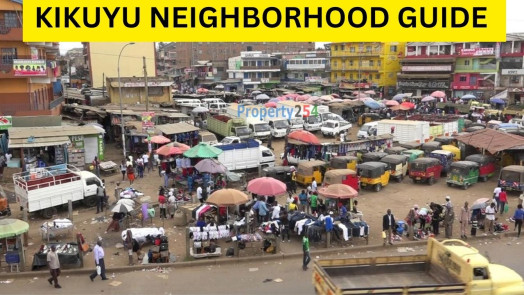
  • Kikuyu Neighborhood Guide : All You Need to Know

    Kikuyu Neighborhood Guide : All You Need to Know

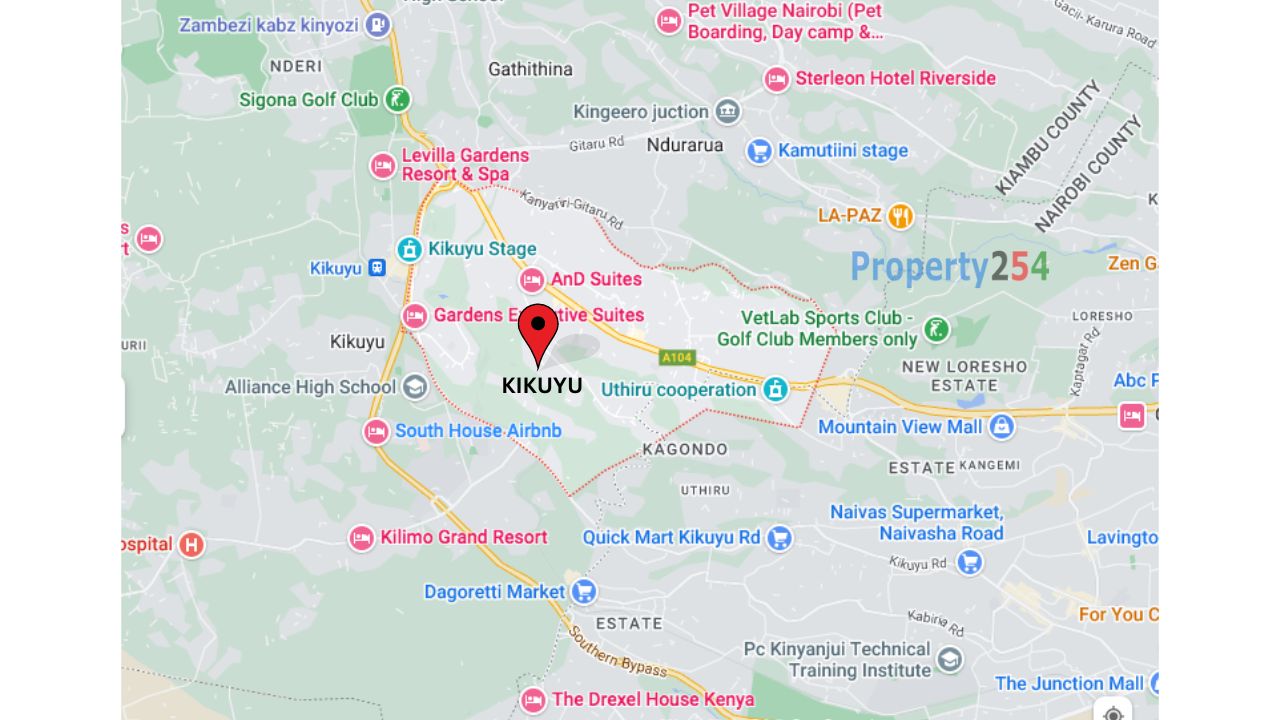
    Kikuyu is located Southwest of Nairobi CBD off the Nairobi-Nakuru Highway approximately 19 kilometers from the city center. It is a constituency in Kiambu County consisting of 6 Wards namely, Kinoo, Kikuyu, Kabete, karai, Muguga, and Nyathuna.

    Kikuyu was named after the Gikuyu/ Agikuyu people, as they were the major tribe that occupied the area. Kikuyu area was a settlement of the colonial missionaries, which is the reason that mainly contributed to its growth as a town.

    The Nairobi River has its source in the Ondiri wetlands in Kikuyu.

    Map of Kikuyu neighborhood

    Places of worship in Kikuyu

    PCEA Kikuyu Township

    Hope Eastwards Medical Services

    Community Fellowship Church

    KAG Thamanda Church

    ACK Emmanuel Church

    Full Gospel Churches of Kenya Kikuyu

    Jubilee Christian church Kikuyu

    PCEA Gaithumbi Church

    Seventh-day Adventist churches Kikuyu

    Kenya Assemblies of God

    St Peter Catholic Church

    PCEA Kinoo Parish Stevenson Githii Memorial Church

    St.Marys Catholic Church

    KAG Uthiru Assembly

    Healthcare services close to/in Kikuyu.

    Premier medical center

    Kikuyu Medical and ENT Centre

    Life Point Hospital

    St.Teresa Kikuyu Nursing & Maternity Home

    Kinns Park Medical Centre

    Uthiru dispensary

    St. Peter (ACK) Dispensary

    St.peter Orthopedic and surgical center

    Akshar Healthcare Ltd

    Gachui medical centre

    Aga Khan University Hospital Medical Centre

    Plan Med Health Services

    Life Care Hospital Kikuyu

    PCEA Kikuyu Hospital

    Fitness center/ gyms in Kikuyu

    Fit N Fine Gym- 0721814099

    Ultra Fitness Gym- 0707764711

    Stunya Gym- 072383160

    Urban Fitness Gym- 0719 170244

    Prestige Fitness Centre Kikuyu- 0719 746343

    Oxygen Gym Kikuyu- 0712467192

    Firm and Fit Gymnasium- 0715310205

    Beauty/SPA Parlour in Kikuyu

    Queeens beauty salon Kikuyu

    Rundas Beauty Parlour

    The Loft Barbershop and SPA-0725800085

    City Valley Annex Salon and Barbershop- 0729872626

    Oasis Beauty Parlour Kikuyu-

    Mavella Salon-0708 242420

    Leon King Barbers & Beauty Parlour- 0792 438393

    Universities/Colleges in Kikuyu

    The University of Nairobi Kikuyu Campus

    Prysebitarian University of East Africa

    Thogoto Teachers Training College

    Kikuyu Commercial College

    Vantage Teachers College

    Kismart College

    Highschools

    The Alliance Boys High School

    The Alliance Girls High School

    Kahuho Uhuru High School

    Uthiru Girls Highschool

    Kirangari Highschool

    Kikuyu Day Secondary School

    Karai Day Secondary School

    Mary Leakey Girls School

    Moi Girls Kamangu

    Muhu Secondary School

    Primary schools

    Thogoto Primary School

    Mama Ngina Primary School

    Golden heights Academy

    Kikuyu Township Primary School

    Utafiti Primary School

    Wambaa Primary School

    Roots Academy

    Good Foundation Academy Primary School

    The green Gardens Schools

    Muthiga Academy

    Gikambura Primary School

    Gicharani Primary School

    Kidfarmaco Primary School

    Kanyiha Primary School

    Great Vision School

    Entertainment joints in Kikuyu

    Las Colinas Lounge

    Waves bar and grill

    Country Club Bar

    Muhuri Ridge Castle

    Rental houses in Kikuyu

    Single rooms      Ksh3, 500 to Ksh5, 000

    Bedsitters           Ksh5, 500 to Ksh9, 500

    One-bedroom     Ksh10, 000 to Ksh14, 000.

    Two bedroom      Ksh12, 000 to Ksh16, 000

    Internet providers In Kikuyu

    Spotnet services- 0733 891 927

    KingsNet Internet Solutions- 0711 116 824

    Poa Internet- 07 30 862 862

    Netcom Kenya- 0706423892

    Advantages of living in Kikuyu

    Affordable housing options

    The rental prices and properties on sale in Kikuyu are affordable compared to those in other neighborhoods or closer to the city.

    Proximity to amenities

    Kikuyu is close to all the essential amenities needed for a comfortable lifestyle.

    Proximity to Nairobi CBD

    Kikuyu is conveniently located for residents who wish to commute daily to the city center and its surrounding neighborhoods. Therefore residents can enjoy access to all advantages that come with living in the city while at the same time living in an affordable and serene environment.

    Disadvantages of living in Kikuyu

    Traffic congestion

    During peak hours Kikuyu town may experience traffic congestion, which can cause inconveniences to residents who commute daily or those running errands in town.

    Insecurity

    As with any other growing town, Kikuyu is faced with security issues in some parts. There are however frequent patrols by Kenya police to try and reduce the crime rates. It is important for visitors and residents to remain vigilant and report any suspicious activities to the relevant authorities.

    Conclusion.

    Kikuyu is an attractive neighborhood for students, individuals, and families looking for a fulfilling and affordable lifestyle. There are many properties for sale in this neighborhood that can make a good investment. You can browse our website to find your perfect property made by some of the most trusted sellers in the country.

    If you have found this article informative, we invite you to read more articles on our website to stay updated on different neighborhoods in Kenya. You can also subscribe to our Youtube channel to watch video guides of different neighborhoods in the country.

    https://youtube.com/watch?v=cBBgis9NTAE
  • Roysambu Neighborhood Guide : All You Need to Know

    Roysambu Neighborhood Guide : All You Need to Know

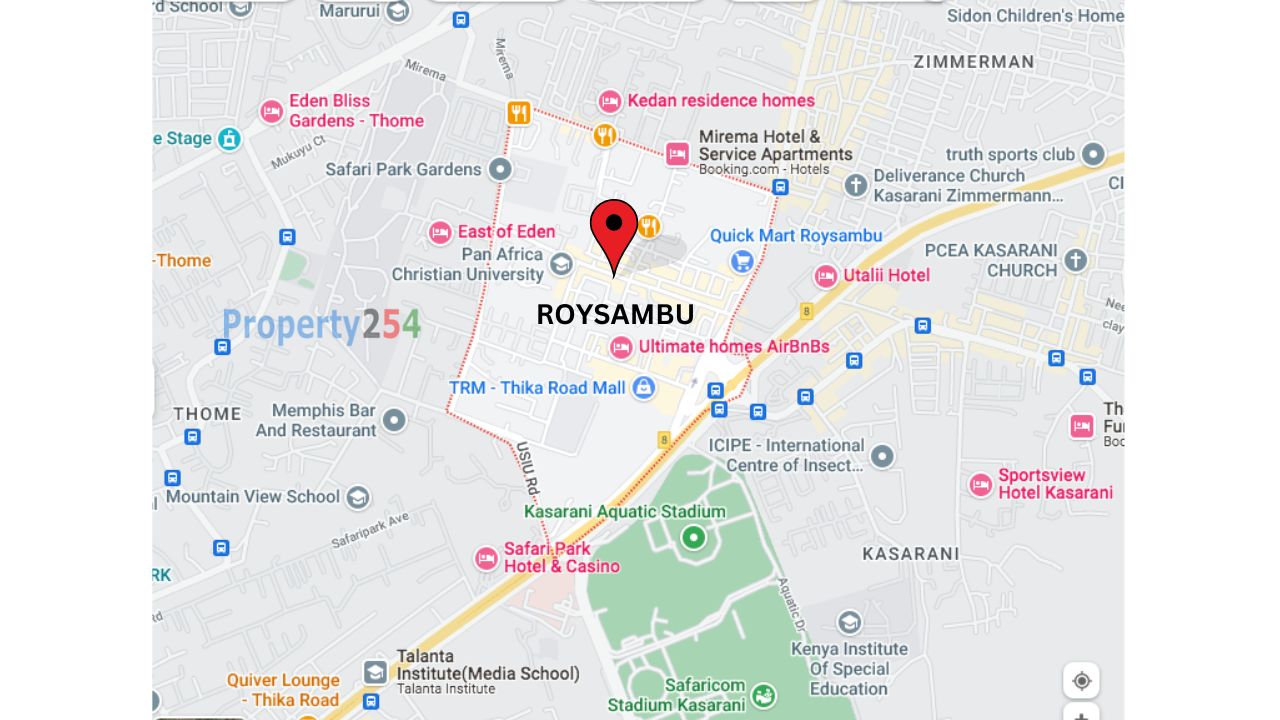
    Roysambu is a commercial and residential neighborhood located approximately 11 kilometers North East of Nairobi CBD. It is a constituency in Nairobi County consisting of 5 wards; Roysambu, Zimmerman, Kahawa, Githurai, and Kahawa West

    During colonial times, the bigger part where Roysambu sits was a coffee plantation farm. The area was known as Royal Suburbs shortened as Roy-Subs. Locals pronounced this as Roysambu, which stuck to date. The land on which the plantation was was later subdivided and sold. Today, it is a commercial and residential neighborhood mostly occupied by middle and low-income earners.

    Map of Roysambu neighborhood

    Roysambu Neighborhoods

    Kasarani

    https://youtube.com/watch?v=zazN_x1I0s4

    Githurai

    Ruaraka

    Zimmerman

    Kahawa Sukari

    Mirema

    Thome

    Places of worship in Roysambu

    Jesus Winner Ministry

    Faith Harvest Int’l Church

    Baptist Mission of Kenya

    World Changers Church

    Independent Presbyterian Church

    Jesus Winner Ministry

    Roysambu SDA Church

    PEFA Church

    Winning Faith Church

    Thika Road Baptist Church

    Catholic Church Roysambu

    Healthcare services close to/in Roysambu.

    The Mater Hospital

    Mimosa Cottage Hospital

    Annex Health care

    AAR Health care

    Cinen Hospital

    Jesse Kay Children’s Hospital

    Mwanga Medical Services

    Life Bridge Hospital

    Aga Khan Roysambu Medical and Dialysis Centre

    Fitness center/ gyms in Roysambu

    Safara Gym- 0733708147

    Maxfit Fitness Gym- 0700534339

    Easy Gym- 0714939962

    Classic Gym and Executive Salon- 0729796802

    Beauty/SPA Parlour in Roysambu

    Morris Salon and Beauty Parlour

    Nails Haven and SPA

    Zamy Barbershop and Spa

    Abis Salon and Cosmetics

    Universities/Colleges

    United States International University

    Pan Africa Christian University

    St. Kizito Vocational Training Institute Roysambu branch

    Pan African Christian University

    Jewel Professional College

    Highschools

    Balkan Highschool

    Green star Highschool

    The Marion Schools

    St. Catherines Mountain View Academy Secondary School

    St. Marys Ruaraka School

    Maria Immaculata Secondary School

    Primary schools

    Mirema School

    Maria Immaculata Primary School

    Garden Estate Primary School

    Entertainment joints in Roysambu

    Memphis Bar and Restaurant

    Attic Lounge

    Mojitos Cocktails Lounge

    Fifis Bar

    K Lounge Sports Bar

    Cocorico Bar and Restaurant

    Club Bartender

    Rental houses in Roysambu

    Single rooms      Ksh5, 000 to Ksh6, 500,

    Bedsitters           Ksh6, 500 to Ksh10, 500

    One-bedroom     Ksh10, 000 to Ksh15, 000.

    Two bedroom      Ksh13, 000 to Ksh19, 500

    Internet providers In Roysambu

    Wavelink networks- 0748111304

    Zuku Fiber- 0719 028 200

    Poa Internet Providers- 0730 862 862

    Speedsurf Kenya Ltd-0704691698

    JTL Faiba- 0793 466 602

    Safaricom Home Fiber- 0722 002 200

    Unireach Technology limited-0712728935

    Advantages of living in Roysambu

    Convenient location

    Roysambu is situated at an excellent location offering residents easy connectivity and accessibility to Nairobi CBD and neighboring towns.

    Diverse amenities

    Residents can conveniently find everything they require for their everyday needs within Roysambu for a comfortable and fulfilling lifestyle.

    Thriving business Hub

    Roysambu has a conducive environment for start-ups due to its strategic location. This has over the years attracted professionals and entrepreneurs who have invested heavily in different business ventures providing employment and overall growth and prosperity of residents.

    Safety and Security

    The presence of police stations and community policing initiatives has contributed to a secure environment in Roysambu.

    Disadvantages of living in Roysambu

    Rising Cost of living

    The cost of general expenses is higher compared to other neighborhoods. This is because of the growing popularity and development of Roysambu. It has posed a lot of challenges for residents on tight budgets.

    Traffic congestion

    The increased population in Roysambu can lead to heavy traffic congestion, especially during peak hours along Thika Road. This can be time-consuming and frustrating to residents commuting to and from work or running errands.

    Strain on infrastructure

    Due to the rapid growth and increased population Roysambu has experienced a strain on existing infrastructure.

    Conclusion.

    Roysambu remains an attractive place to call home or start a business despite its challenges. It is an area with so much potential and opportunities.

    For those looking for an ideal home, an investment property, or just curious about the real estate opportunities in Roysambu we invite you to browse through our website. We have a list of properties for sale in the area that would fit exactly what you are looking for and make you a part of Roysambu. Thanks in advance and all the best in your hunt.

    https://youtube.com/watch?v=D8xdSnHvl8Y
  • Transfer by Personal Representative to Person Entitled Under a Will or Intestacy on Ardhisasa

    Transfer by Personal Representative to Person Entitled Under a Will or Intestacy on Ardhisasa

    The prior registration of personal representative as executor or administrator from LRA 39 is a prerequisite for this transfer process. The transfer process by personal representative to a person entitled under a will or intestacy is the process of conveying rights of a property from the administrator of the property to the beneficiaries of the property named by will of the deceased owner or a court order.

    1.      Visit https://ardhisasa.lands.go.ke .

    2.      Click on the login button and enter your Ardhisasa ID or national ID number, along with your password. You will receive a one-time password (OTP) on your registered phone number. Enter the OTP and log in to the dashboard, where you’ll find various services under the Ministry of Lands and Physical Planning.

    3.      To initiate the transfer process as an advocate, switch to your professional account. Click on the profile icon and select the professional account that has been approved for you.

    Read: How to Upgrade your Account on Ardhisasa

    4.      In the dashboard, locate the land registration section and click on Transfer. Among the various transfer services, choose Transfer by Personal Representative to Persons Entitled Under a Will or Intestacy (LRA 42).

    5.      Upon selecting the transfer service, you will be directed to the applications page. Here, you can find tabs for pending, ongoing, completed, rejected, and cancelled applications. To initiate a new application, click on the New Application button in the top right-hand corner.

    6.      On the new application page, you will find frequently asked questions (FAQs) specific to the transfer by personal representative to a person entitled under a will or intestacy. Take your time to go through these FAQs, which provide information on the actors involved, requirements, payments, and necessary documents. Once you are familiar with the application details, click on Next to proceed.

    7.      In the proprietorship details section, enter the parcel number in the specified format. If you have the reference number for the personal representative’s registration as executor or administrator, you can enter it.

    8.      Enter the Ardhisasa ID of the transferor (personal representative), and click on Search. A pop-up box will appear, asking you to select the category of person executing the transfer (transferor). Choose either Transfer executing on his/her own behalf or Attorney executing on behalf of the transferor. If you select the attorney option, enter the power of attorney entry number and click Search. If the attorney is not registered, enter the administrator ID of the attorney. Save the information and review the names of the transferor and the person executing on their behalf. You can make changes if necessary.

    9.      Indicate whether the deceased procreator (owner of the property) was registered on the platform or not. If registered, enter the Ardhisasa of the deceased and click Search. The details will be displayed. If the deceased was not registered, enter the name and identification type (e.g., ID number) of the deceased.

    10.  Enter the Ardhisasa ID of the transferee and click on search. The details of the transferee will be listed on the right. If you wish to change the initial transferee, click on the remove button and enter the correct Ardhisasa id of the transferee. click next.

    11.  Enter either the date for grant of will or the date for grant of letters of administration. This is because if the deceased had made a will the court authority given is a grant of profit and if the decision did not make a will the authority given by the court is the grant of letters of administration. Additionally, input the date of confirmation of the will. Proceed to the next section.

    12.  Enter the Ardhisasa ID of the person designated to pick up the title after the transfer. Provide the details of the law firm involved in the process, either by selecting a registered law firm or manually entering the law firm details.

    13.  Include any additional provisions or information that may be necessary for the transfer process. Upload the required documents, such as the grant of will and certificate of confirmation, in PDF, PNG, or JPEG format. Verify the documents and proceed.

    14.  Review all the provided details on the confirmation page. If satisfied, submit the application. A confirmation message will appear, indicating a successful submission. Close the pop-up box.

    15.  The transferrer and the transferee will all get a notification on sms and on email communicating that the transfer process has been initiated. The advocate will also be notified to execute on the application with a signature and also confirm representation of some or all of the parties listed. The progress level of your application on the progress bar as is featured on the upper section of your screen.

    16.  Click on the pay button and you’ll be provided with the available methods for payment as well as the procedures to be used. Once the payment is made, click confirm button featured on the bottom left-hand corner. The advocate will be notified to confirm the application to represent the party listed.

    17.  Click on accept the application. You’ll be prompted to approve on whether you want to represent the party. Click on accept and the party involved will be notified that the advocate has accepted to represent him or her in the transfer process.

    18.  Enter the signature.

    Read: Signing options on Ardhisasa

    19.  The application verification section displays the parties involved who have verified the application. When the transferee (the person receiving the land) logs in, they will navigate to the notification bell on the top right-hand corner of the screen. They should check for the notification prompting them to verify the application. An OTP prompt box will be displayed, accompanied by a Gate OTP button. Below the OTP prompt box, a disclaimer instructs the party to enter the OTP code only if they authorize the application made on their behalf by the advocate.

    20.  If the transferee approves the process, click on the Get OTP button. An OTP code will be sent to the phone number used during registration. The individual should then enter the exact code received into the OTP prompt box and click on the Verify button. Upon verification, a pop-up box will appear, confirming the successful verification of the OTP. click on Close to proceed.

    21.  Add the signature and, if satisfied, click on save. To affirm the signature, click Yes. The transferee, who is the beneficiary, completes the application by consenting to it.

    Once the advocate logs in, a ticket and invite will automatically be created by the system to enable the surrender of the title. To surrender the title, navigate to the My Appointments tab on the left panel of the screen. An invite will be visible, and clicking on View will allow you to book an appointment on the calendar. Choose a date and time convenient for surrendering the title, and click on submit. A pop-up will appear to confirm the appointment, and upon clicking Yes, the invitation will move to the upcoming appointments tab. Clicking on View allows the generation of a gate pass, which must be presented at the gate during the title surrender.

    Read: Ticketing options on Ardhisasa

    For enquiries, contact us on 0746 962239 or email [email protected] or visit Ardhi House, Off Ngong Rd: P.O. Box 30450-00100, Nairobi, Kenya.

    In case of more information, keep visiting our website https://property254.co.ke/ or call us on 0726982982 or on email through [email protected].

  • Registration of Restriction on Ardhisasa

    Registration of Restriction on Ardhisasa

    A restriction can be registered against a property for the purposes of compulsory acquisition the prevention of any fraud or in proper dealing or for any other sufficient cause. A restriction may be expressed to endure for particular period until the occurrence of a particular event or until a further order is made by the relevant authority. The process is initiated by a registered advocate and he or she must also be registered on the Ardhisasa platform. A land registrar can register a restriction on a property as he or she considers feit.

    Here is the process of registration of restriction application.

    1.      Log in to https://ardhisasa.lands.go.ke/account/login   using your user credentials, which include the notification number or the Ardhisasa ID and the password associated with your account. Once logged in, you will receive a one-time password (OTP) code on the phone number registered with the platform. Enter the OTP code and log in to access the dashboard.

    2.      To initiate a registration of a restriction application, you need to switch to your advocate account. Click on the profile icon and select the professional account, which has been approved for you. If you haven’t upgraded your account yet, Read How to Upgrade your Account on Ardhisasa

    3.      In the dashboard, navigate to the land registration section and click on View More to find the application listed under the services offered in this department. You will be directed to the applications page, where you’ll find different tabs: Pending, Ongoing, Completed, Rejected, and Cancelled. These tabs represent the status of the applications you have initiated.

    4.      To initiate a new application, click on the New Application tab located at the top right corner. Before proceeding, you may explore the Frequently Asked Questions (FAQs) related to the process. Once you are ready, click Next to proceed.

    5.      Enter the parcel number in the format registry/block-number without any spacing. Provide the Ardhisasa ID of the applicant and click on Search. A pop-up box will appear asking you to select the category of person executing as the applicant. Choose the appropriate option and enter the necessary details accordingly.

    6.      Select the nature of the restriction from the available options: Absolute meaning that the applicant wishes to prevent the registration of all documents with no exceptions whatsoever. Subject to consent of the owner meaning that the restriction prevents any entry from being made into the register unless the property owner or owners agree to the same. Transaction is subject to restriction meaning that the restriction is buying the registration of a particular transaction in the register as is determined by the property owner or owners.

    7.      Enter the grounds of restriction, such as suspected fraudulent activities.

    8.      Provide the details of the law firm you are representing. If the law firm is registered on Ardhisasa, enter the ID and search for the details. Alternatively, manually enter the law firm details, including name, physical address, postal address, phone number, and email address.

    https://youtube.com/watch?v=PY0Ib1FWDaM%3Fstart%3D192

    Read: How to add property on Ardhisasa

    9.      Upload any additional supporting documents that will aid the processing of the application. These documents can include letters, investigation reports, or any relevant materials. Click on Choose File to select the documents from your device.

    10.  Review all the details you have provided in the previous steps. If everything is accurate and complete, click on Submit. A confirmation pop-up will appear, asking you to confirm the submission. Click Yes to submit the application successfully.

    Once the application is submitted, the involved parties will receive notifications to verify and sign the application. They can access the Ardhisasa platform and navigate to the application details page. The party will receive an OTP code to verify their identity. After verification, they can proceed to sign the application using the provided signing options.

    Read: Signing options on Ardhisasa

    Its is key to note that the advocate must be in communication with the party or parties involved throughout the verification process.

    For enquiries, contact us on 0746 962239 or email [email protected] or visit Ardhi House, Off Ngong Rd: P.O. Box 30450-00100, Nairobi, Kenya.

    In case of more information, keep visiting our website https://property254.co.ke/ or call us on 0726982982 or on email through [email protected].

  • Registration of Caution Application on Ardhisasa

    Registration of Caution Application on Ardhisasa

    A caution is a notice in the form of a register to the effect that no action of a specified nature in relation to the land in respect of which the notice has been entered may be taken without first informing the person who gave the notice. This application is initiated by an advocate on behalf of the applicant. In this article we will guide you on step by step on registration of caution application.

    1.      Visit  https://ardhisasa.lands.go.ke

    2.      Log in enter your Ardhisasa ID or national ID number and password. Click on Continue. A one-time password (OTP) will be sent to the phone number associated with your Ardhisasa account. Enter the OTP in the provided box and click on “Login.” You will be redirected to the dashboard.

    Read: How to Register a Company on Ardhisasa

    3.      On the dashboard, you will find various services listed under different departments in the Ministry of Lands and Physical Planning. By default, you are logged in with your private account.

    To initiate the caution application process, switch to your advocate account. Click on the profile icon, and a dropdown menu will appear. Select the professional account that has been approved for you as an advocate.

    Read: How to Upgrade your Account on Ardhisasa

    4.      Navigate to the Land Registration section and click on View More. Under the land registration section, you will find several services. Locate the Caution option and click on it. This refers to the registration of a caution. You will be directed to the applications page, where various tabs are provided.

    5.      On the applications page, you will see five tabs: Pending, Ongoing, Completed, Rejected, and Cancelled. Each tab represents the different stages of your caution application. The Pending tab lists the applications you have initiated but have not completed, requiring action from you or the involved parties. The Ongoing tab displays completed applications awaiting processing by ministry officials. The Approved tab shows applications that have been validated by ministry officials. The Rejected tab lists applications that were rejected, with reasons communicated to the applicant. The Cancelled tab is for applications that have been cancelled by parties involved.

    6.      Click on the New Application button. This will navigate you to a page with frequently asked questions (FAQs) specific to the caution application. Explore the FAQs to gain a better understanding of the application requirements and process. Once satisfied, click on Next to proceed.

    7.      In the proprietorship Details section, enter the parcel number in the format registry/block/parcel number. Fill in the proprietor’s details, including identification type (ID or passport number), name, contact number, and identification number. Click on add to automatically populate and display the entered details on the right side. Use the Remove button to correct any entered details if needed. Once the details are correct, click on Next.

    8.      In the caution details section, select the extent or scope of the caution. It can be either Subject to the Interest of the caution or Absolute. The Subject to the Interest of thecaution to prevent another person from compromising the sale interest, while the Absolute forbids all dealings with the specified parcel. Enter the interest claimed, such as a purchaser’s interest, and click on Add. The interest claimed will be displayed on the right.

    9.      Enter the Ardhisasa ID of the cautioner and search for it. Select the category of person executing as the cautioner (either the cautioner themselves or an attorney). If choosing the attorney option, enter the power of attorney entry number. Save the details and proceed.

    10.  Enter any additional details relevant to the caution application. If applicable, provide the details of the law firm you are acting under. You can either tie the application to a registered law firm on the Ardhisasa platform or manually enter the law firm details.

    11.  Upload supporting documents for the caution application, such as a sale agreement. Ensure the documents are in PDF, PNG, or JPEG format. Enter the document name and choose the file to upload from your device. Review the submitted documents and click Next to proceed.

    12.  Carefully review all the details provided in the confirmation step. If everything is accurate, click Submit to proceed with the application. You can go back to make any necessary edits if required. Upon submission, a confirmation message will appear, and both the cautioner and advocate will receive notifications via SMS and email.

    13.  Once submitted, the cautioner will receive a notification to verify the application and append their signature. The advocate will also need to accept or reject the representation request during this stage.

    Read: Signing Options on Ardhisasa

    Both the advocate and the cautioner will receive a confirmation message that the application has been successfully submitted. If the caution application is approved, an entry will be made on the register, indicating the relevant details. All parties involved will be notified about the placement of the caution on the specified parcel of land.

    For enquiries, contact us on 0746 962239 or email [email protected] or visit Ardhi House, Off Ngong Rd: P.O. Box 30450-00100, Nairobi, Kenya.

    In case of more information, keep visiting our website https://property254.co.ke/ or call us on 0726982982 or on email through [email protected].

    Related Articles

    1.      How to Make a New Grant Application ArdhiSasa

    2.      Removal of a Deceased Joint Proprietor’s Name from the Register on ArdhiSasa